Showing posts with label windows. Show all posts

Monday, February 2, 2009

How to Run an X Server on Windows : An Introduction to Xming

Accessing your Linux machine remotely is a no-brainer on the command line thanks to built in support for services such as telnet and ssh. But what about accessing your GUI remotely?

Well on a Unix-based OS, it's pretty much just as easy, right out of the box. But thanks to great open-source software like Xming, it's just as easy from windows too.

Before we get started we will have to download and install Xming. You can download Xming directly from the project's download page on SourceForge. For starters, download the xming, xming-fonts and xming-tools-and-clients packages. The Xming and Xming-fonts packages download as executable's, so just run them and "next, next, next" your way through the install wizards; the xming-tools package downloads as a zip archive, so extract it to somewhere on the path (eg: c:\windows\system32).

You will also need a terminal client like PuTTY so download that here, and we'll be ready to go.

We'll be covering two scenarios in this tutorial

Running Individual Applications

. Fire up your Xming server using the start menu shortcut.You will see the Xming icon running in your taskbar. If you hold your mouse pointer over the icon, you will see a popup indicating the server number for this instance (you can run multiple X servers).
There are only three basic steps required to achieve this.
  1. Configure Access Control on the Source Machine.
    As with Linux, we will use the xhost utility to achieve this. The only difference is that this time you have to set the DISPLAY environment variable on the source machine too (this was done for you in Linux, because you were working within the X server environment).

    set DISPLAY=:0.0
    xhost +[hostname]:{X server number}
       eg. xhost +192.192.0.5:0.0

  2. Make a Terminal Connection to the Target Machine.
    Fire up PuTTY and use telnet or ssh to make a terminal (command line) connection to the machine you want to run the GUI application on.

  3. Set the DISPLAY environment variable on the Target Machine.
    The DISPLAY environment variable is used to choose the X server to attach to when running a GUI application. The variable is addressed as [X server hostname]:{X server instance number}. Set this variable to the hostname of your windows box (running Xming), and use the appropriate server instance number.

    export DISPLAY=192.192.0.3:0.0
That's it, you're ready to go, so fire up a GUI application to test it out (I always use something simple, fast and lightweight like xclock to test with).

Full Remote Desktop.

For this example, we'll be making use of Xming's Xlaunch component. But before we get started, we need to make sure that all the security is set up correctly.
  • Check Your Firewall.
    Check your firewall on the target machine, ensure that the X11 port is open (usually port 6000).

  • Configure Your Desktop Manager.
    If you're running Gnome, do the following:
    1. Run the GDM configuration application (as root)

      gksu gdmsetup

    2. Select the Security tab and ensure that "Deny TCP connections to Xserver" is disabled. You will have to restart your X server after applying these settings. Just kill your X server (ctrl + alt + backspace), it should automatically restart.

  • Fire up XLaunch.
    Use the start menu shortcut to start XLaunch


      • Select "One window"
      • Enter a display number
      • Select "next"


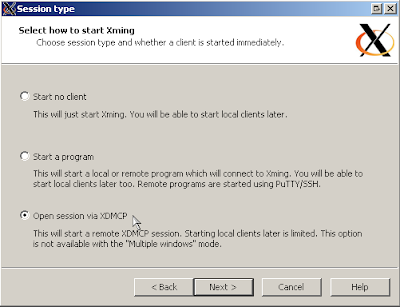
      • Select "Open session via XDMCP"
      • Select "next"


      • Either select "Connect to host" and enter the hostname or ip address of the target machine.
      • or, Select "search for hosts (broadcast)" to search for the target machine.
      • Select "next"


      • Accept the defaults and select "next"

      • Select "Finsh"


You now have a full "Remote Desktop" Linux environment from within Windows!

Tuesday, January 20, 2009

Access Your Linux Partitions In a Dual-Boot Environment

If you're running Linux in a dual boot or multi boot environment, chances are good there's been times when you've needed to access some or other file on your Linux partition from within windows. Luckily there's an Ext2/3 file system driver available, for free.

So you've taken the plunge and installed Linux, you've decided to be cautious and run a dual-boot environment; just to be safe in case you find yourself out of your depth. Or perhaps you're serious about your gaming, you're going to have to hang onto your windows environment to play some of your favorite games. Smart move, but it does come with it's little quirks.

Accessing your Windows partitions from Linux has been possible, and really easy for quite a while now. The Fat and Fat32 file systems have been supported for years, and thanks to the ntfs-3g initiative, read/write support is available for NTFS partitions too. Windows on the other hand, is a little less clued up when it comes to accessing Linux partitions.

So here's one of the quirks I mentioned earlier; You've booted into your Windows environment, but you urgently need a file that resides on your Linux partition! Is it really worth rebooting your box into Linux just to get that one file you need?

In short, most of the time, No, it's not. But it's also unnecessary; thanks to the Ext2 Installable File System For Windows.

Installing this driver is quick and painless, we'll cover the installation and configuration in the next few steps, so let's start right at the beginning. For this example, I've used a USB flash/jump drive formatted with the Ext3 file system.

  1. Windows should have no problems picking up your Linux partition; it's a valid partition, it's just of an unknown file system type. Chances are good it might even assign the partition a drive letter. When you try to browse the drive though, you'll probably get a message like this one.


    As I said, Windows doesn't recognize the file system, and therefore assumes that it's corrupt; thus prompting you to format the drive. I think it goes without saying that you should not do this, unless of course you want to loose your Linux data.

    A quick look at the Disk Management console in the Control Panel should indicate that the partition has been picked up as healthy.


  2. Download the installation file directly from http://www.fs-driver.org; visit their download page here. At the time of writing, the current release is Ext2IFS_1_11a, which includes support for Windows NT 4.0/2000/XP/2003/Vista/2008 (both x86 and x64 platform). Save it to disk in a location where you'll find it again easily (the current download size is 1.38 MB).

  3. Execute the installation application (downloaded in step 2). Follow the instructions on screen; You can accept the default options, but ensure that large disk support option is selected.

    The installation is now complete.

  4. Find the "IFS Drives" icon in your control panel and fire it up.


  5. You should now see your Linux partition listed.


    If we go back into Explorer, and try to access the drive again, you should see something like this.


So now you're able to access your Linux partitions from your Windows environment, no reboot or virtualization software required.

For further reading, please visit the Ext2 IFS FAQ section.

note: No mention is made of support for reiserFS or Ext4, only for Ext2 and Ext3 file systems.

Detailed List of Features:
  • Supports Windows NT 4.0, Windows 2000, Windows XP, Windows 2003, Windows Vista and Windows 2008.

  • Supports both the 32 bit x86 and the 64 bit x64 platform.

  • Includes drivers with a digital signature for Windows Vista x64.

  • All operations you would expect: Reading and writing files, listing directories, creating, renaming, moving and deleting files or directories, querying and modifying the volume's label.

  • UTF-8 encoding.

  • Files larger than 2 GBytes. (Please read the FAQ section, too.)

  • Supports hash indexed (htree) directories (utilizes the so-called dir_index feature of Ext3).

  • Full plug-n-play functionality. When a drive is removed, the corresponding drive letter is deleted.

  • Supports use of the Windows mountvol utility to create or delete drive letters for Ext2 volumes (except on Windows NT 4.0). This is useful for scripts. (Please read the FAQ section, too.)

  • A global read-only option is provided.

  • File names that start with a dot "." character are treated as hidden.

  • Supports GPT disks if the Windows version used also does.

  • Paging files are supported. (A paging file is a file "pagefile.sys", which Windows swaps virtual memory to.) Users may create paging files at NT's control panel at Ext2 volumes.

  • Specific functions of the I/O subsystem of NT: Byte range locks, notification of changes of directories, oplocks (which are required by the NT LAN manager for sharing files via SMB).